
One card per group on collection pages Rubik Combined Listings Swatch
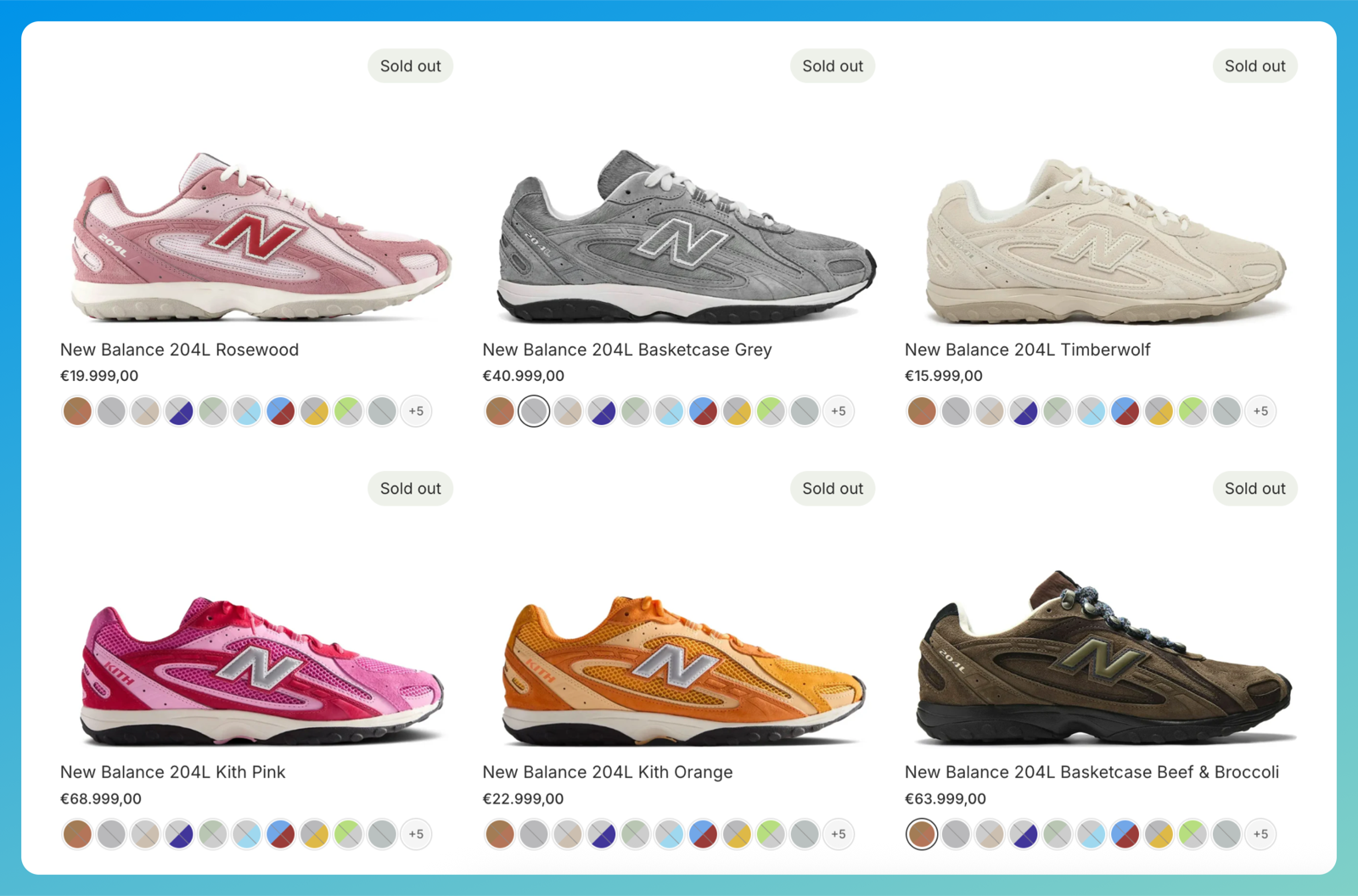
When you group products in Rubik Combined Listings Swatch, every product in the group keeps its own page and its own card. So a collection or search results page shows one card per product: if a sneaker comes in 15 colors and all 15 are their own products, the collection shows 15 cards, each with a swatch row underneath.
That's perfect for some stores. But many merchants want the opposite: one tidy card per group on collection and search pages, with the swatches still sitting underneath it so shoppers can jump straight to any color. This page shows you how to get exactly that, using a built-in Shopify feature and your existing Rubik group.
Before you start: check your theme. This technique uses Shopify's Unlisted product status. On Dawn and current Online Store 2.0 themes, Shopify hides unlisted products from collections and search on its own, with no theme edits. On some older or heavily customized themes (and with certain apps that build their own collection grids or "you may also like" blocks), an unlisted product can still slip into a collection. Admin API versions before 2025-10 also report unlisted products as active, so theme code or apps that filter by status may not catch them.
So after you set this up, open a collection and confirm the unlisted products are actually gone. If one still shows, the cause is custom theme code or an app, not Shopify itself. Message us and we'll help you track it down.
The difference at a glance
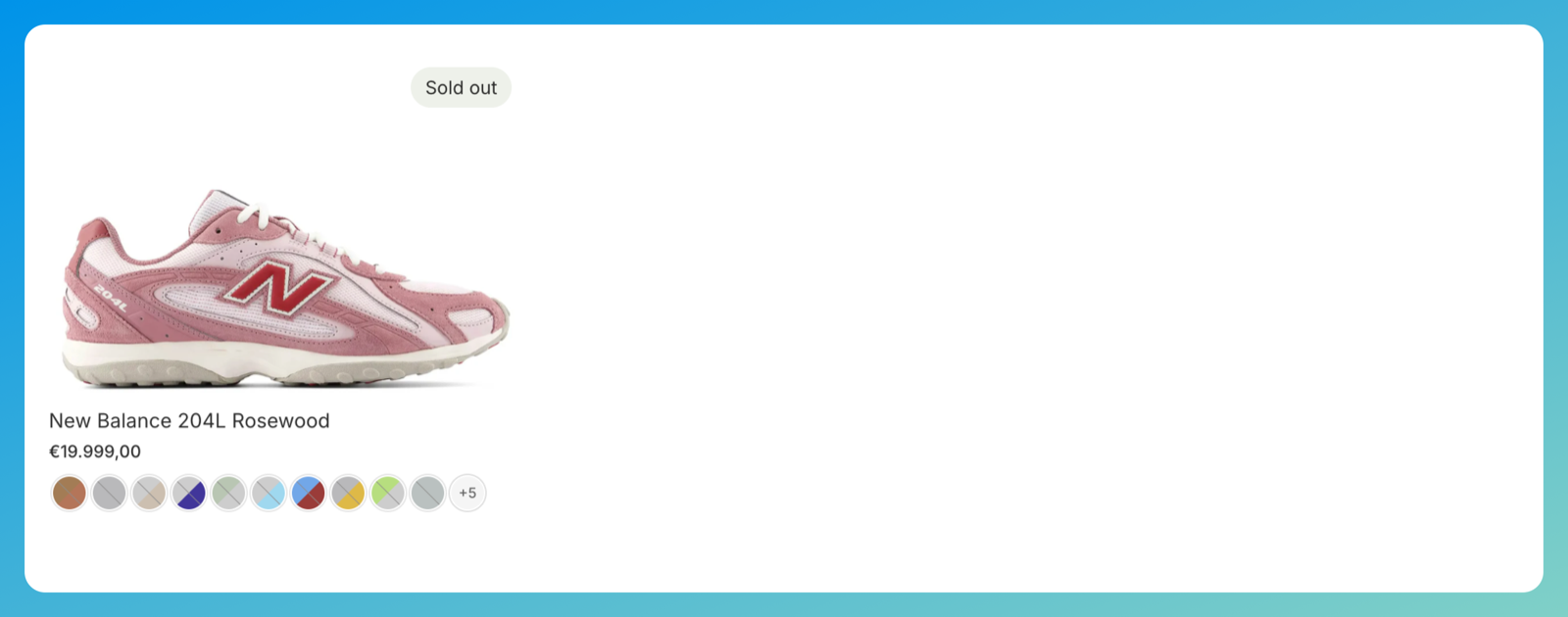
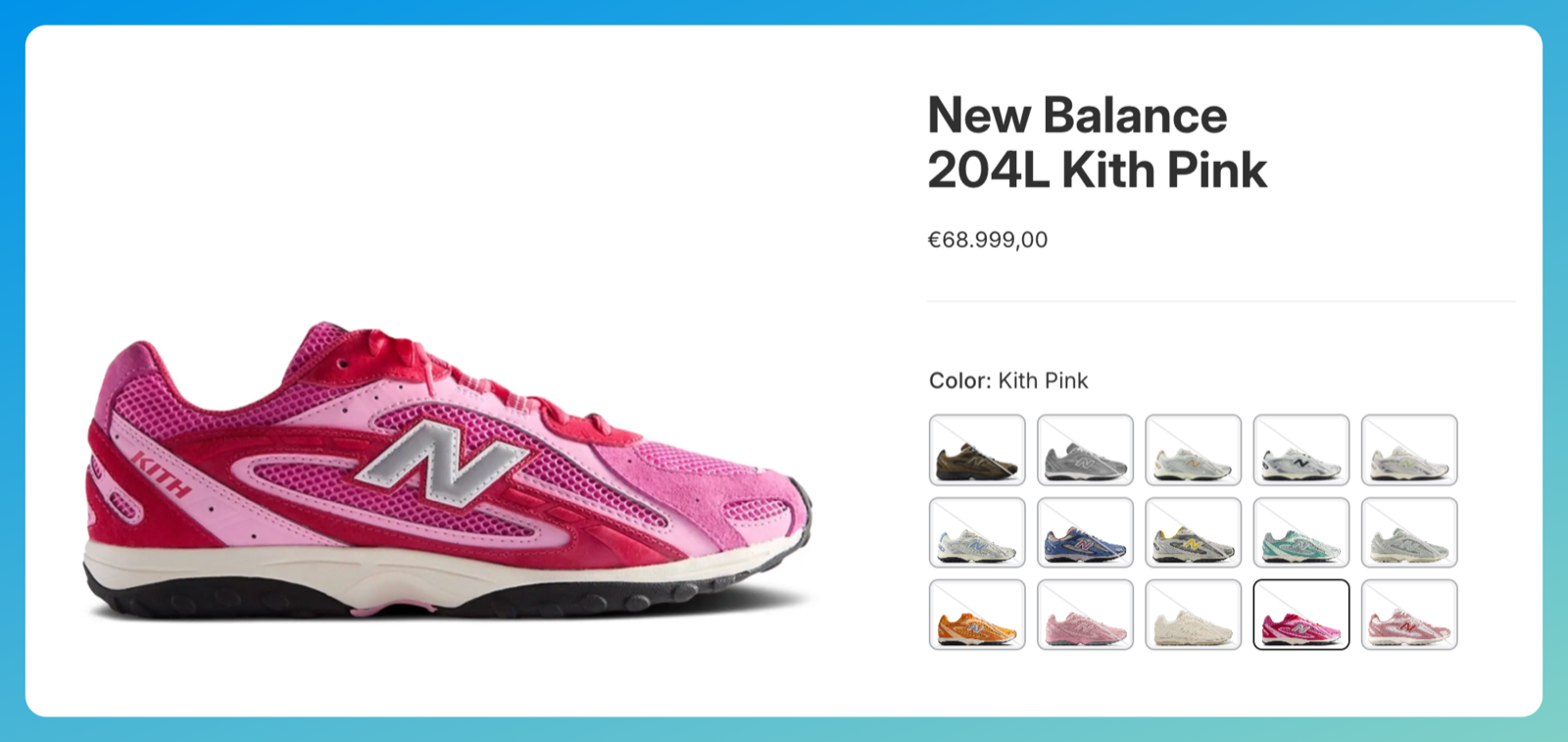
Same group of 15 New Balance 204L colorways. On the left, the collection lists all of them. On the right, it lists just one, but the swatch row underneath still links to all 15.
How it works
Shopify has a product status called Unlisted. An unlisted product is hidden from your storefront's browsing surfaces (collection pages, search results, predictive search, product recommendations, and the sitemap), but its product page stays fully reachable by direct link and remains purchasable.
Rubik's swatches are built from your group, not from what's listed in a collection. They link directly to each product's URL. So when you unlist a product, two things happen at once:
- It disappears from the collection grid (no more card for it).
- Its swatch keeps working everywhere. It still appears in the swatch row, still shows its image and price, and still links straight to its (direct, unlisted) product page.
The trick, then, is simple: keep one product in the group Active, and set the rest to Unlisted. The collection shows the one Active product as a single representative card, and Rubik draws the full swatch row underneath it.
Nothing to configure in Rubik. This uses your existing product group as-is. There's no special setting to turn on. The behavior falls out of how Shopify's Unlisted status and Rubik's group-based swatches work together.
Set it up in three steps
1 Make sure all the products are in one Rubik group
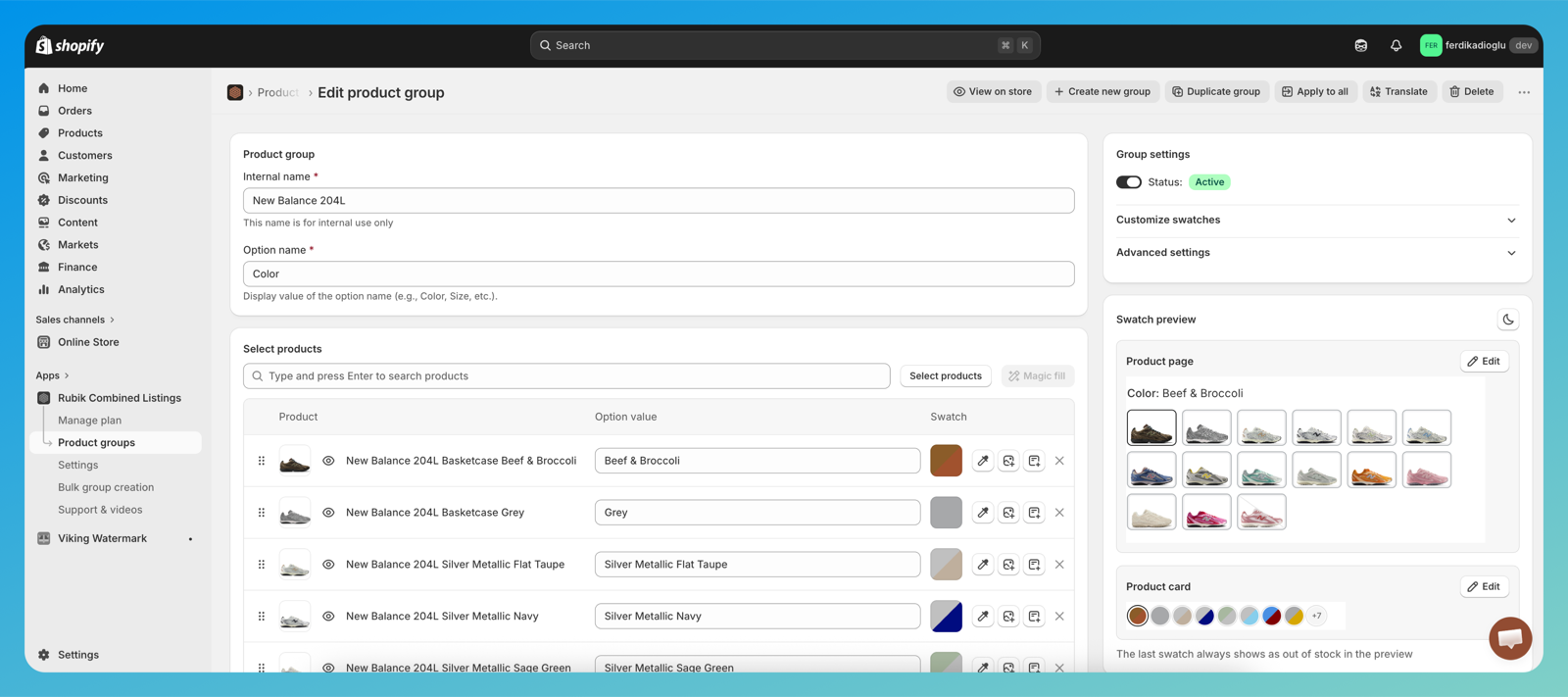
Open Rubik Combined Listings and confirm the products are grouped together with their option values and swatches set, exactly as you would for normal swatch navigation. Every product you want reachable from the swatch row, including the ones you're about to unlist, must be a member of this group.
If you haven't created the group yet, start with the getting started guide and come back here.
2 Pick one product to represent the group, and unlist the rest
Decide which single product should be the face of the group on collection pages, usually your hero color or best seller. Leave that one set to Active. Set every other product in the group to Unlisted.
To unlist a single product, open it in Products, click the ⋯ (more actions) menu at the top right, and choose Unlist product. To do several at once, go to the Products list, tick the checkboxes for the products you want to hide, and use the bulk actions bar to unlist them.
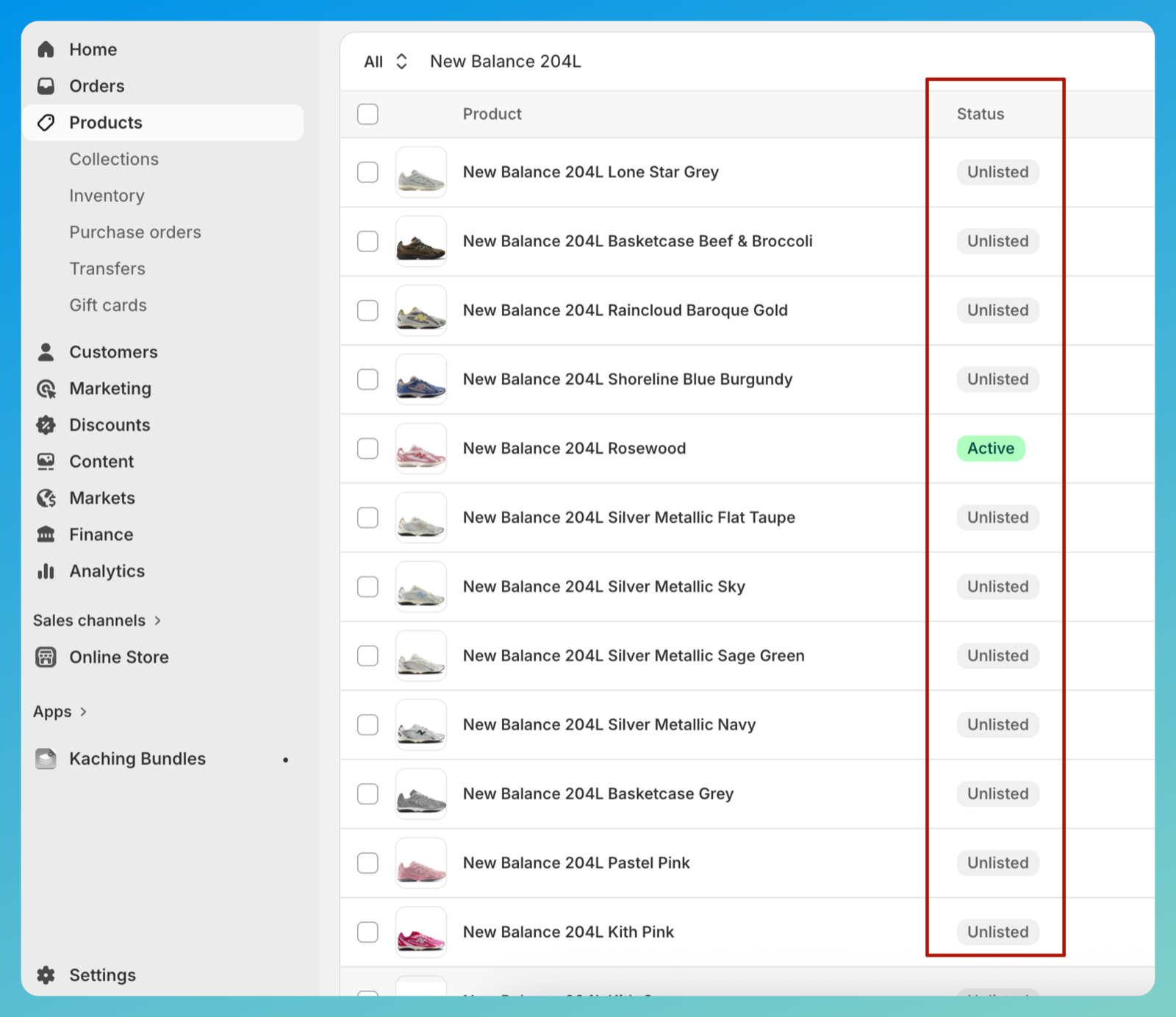
In the Products list, the Status column shows Unlisted for the hidden products and Active for your one representative product. That's how you confirm the setup is correct.
3 Check your collection and product pages
Open a collection (or run a search) that contains the group. You'll now see a single card for the Active product, with the full swatch row underneath it, including a +N indicator if the row is too long to fit, exactly as before.
Then open the product page of any colorway. Nothing changes here: the complete swatch row still renders, every swatch still links to its product, and unlisted products are reachable through those links and ready to buy.
When to use this
- Cleaner collections. A 15-color group becomes one card instead of fifteen, so a collection isn't dominated by a single style.
- Drops and limited editions. Show one hero card publicly while the other colorways stay reachable only through the swatches.
- Curated browsing with full choice. Shoppers see a focused grid but still get the complete color picker the moment they land on the card or open the product.
Good to know
Do unlisted products still show as out of stock or available?
Swatch availability is driven by inventory, not by listing status. An unlisted product that's in stock shows as a normal, fully available swatch; one that's out of stock shows the dimmed, crossed-out style. Unlisting a product never changes how its swatch looks.
Can shoppers still buy an unlisted color?
Yes. Clicking its swatch opens the product page by direct link, where it can be added to cart and purchased like any active product. Unlisted only removes it from browsing (collections, search, recommendations, sitemap), not from buying.
Which product should I keep Active?
Any one of them. Whichever you leave Active becomes the card shoppers see in the collection, so most merchants pick their best seller or most representative color. You can change your mind later by flipping which product is Active and which are Unlisted.
Does this affect SEO? (Read before you unlist)
Unlisting a product de-indexes it. Shopify adds a noindex,nofollow tag to every unlisted product and removes it from your sitemap, so that product stops ranking in Google and loses any organic search traffic it was getting. If a color earns its own search traffic (for example "rosewood 204L"), unlisting it gives that traffic up.
What keeps this safe and reversible:
- Your Active product and the rest of your store are unaffected. The
noindexis scoped to each unlisted product, never to the group or the store. - The page stays live. An unlisted product returns a normal 200 response (not a 404), so the swatch links keep working and nothing breaks.
- It's reversible. Set the product back to Active and Google can index it again (it can take a crawl or two to reappear).
- It is not a canonical merge. The unlisted colors are simply de-indexed, not pointed at the Active product with a canonical tag.
So the call is straightforward. If each color ranks on its own, keep them all Active and show every color as its own card. If they don't rank individually and the collection clutter is the bigger problem, unlisting is a clean fix that can even cut down on thin or near-duplicate color pages. See the SEO benefits page for the wider picture.
What's the difference between this and hiding swatches per group?
They solve different problems. This technique changes which products appear as cards on collection pages, using Shopify's Unlisted status, while keeping the swatch row. Rubik's own visibility settings instead let you hide the swatch row itself on certain surfaces (for example, on the product card but not the product page, or on mobile but not desktop). You can combine both.
Does the "+N" overflow still work?
Yes. On the representative card, Rubik renders the same single-row swatch layout it always does, collapsing extra colors into a +N indicator that opens the full set. The card in the "after" example above shows a +5.
Need help?
If the swatches or the collection grid don't look right after setting this up, message us from inside the Rubik app and we'll take a look at your shop directly.